The Case for Preparing Your Team to Embrace Microsoft 365 Copilot
Preparing your team for new technology is very important. As companies start to embrace Copilot for Microsoft 365, they gain many benefits. More than 60% of Fortune 500 companies have started using Copilot. This shows how it helps improve productivity and teamwork.
Here are some clear improvements seen after using Copilot:
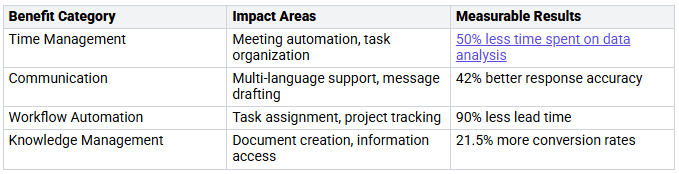
Using Copilot helps create a culture that adapts well. Encourage your team to embrace Copilot, accept change, and use this new tool fully.
Key Takeaways
Using Microsoft 365 Copilot helps teams work better. It automates boring tasks. This lets teams focus on important work.
Copilot Studio allows companies to change workflows. This improves user experience and meets business needs.
Checking your team's skills is important. It helps find gaps and makes using Copilot easier.
A step-by-step rollout plan helps with Copilot's use. It makes sure users adjust well. Feedback helps improve the process.
Ongoing training and support are key. They help users get the most from Copilot. They also keep users interested and ready for changes.
Benefits of Embracing Copilot
Enhancing Productivity
Using Copilot can really help you get more done. This tool takes care of boring tasks. This lets you focus on what is important. Here are some ways Copilot helps you be more productive:
Copilot handles repetitive tasks like setting up meetings, cleaning data, and formatting documents. This saves you time.
It gives you insights based on data. This helps you make smart choices and focus on key tasks.
By connecting different apps, Copilot makes workflows easier. It helps you manage tasks better.
Companies that use Microsoft 365 Copilot see great productivity boosts. For example, users save about 14 minutes each day. About 46% of users notice this benefit. Also, 66% of users say they make fewer mistakes. These gains create a better work environment. You can do more in less time.
Customization with Copilot Studio
Customization is an important part of Copilot Studio. It lets you change workflows to fit your business needs. This way, you can make a special experience for your team. Here are some features of Copilot Studio:
You can also use different integration options:
Standard Integration: Connects directly with Microsoft 365 apps.
Extended Integration: Works with outside systems like SAP and Workday.
Custom Development: Lets you create special plugins for your unique needs.
By using Copilot Studio, you can make custom solutions for your team. For example, you can build agents with a drag-and-drop tool to answer common HR or IT questions. This not only makes things faster but also helps employees feel satisfied by giving them quick answers.
Using Copilot and its customization features can make your organization more flexible. You can adjust to new business needs while improving teamwork and productivity in your group.
Assessing Readiness for Copilot
Evaluating Current Skills
Before you start using Copilot, check your team's skills. Knowing what your team can do helps find areas to improve. Here are some common skill gaps you might see:
Teams may not know how to ask AI properly.
Employees might need support to use new tools.
It's important to know Microsoft 365 tools to use Copilot well.
You may need to check digital skills.
To check readiness, think about using assessment tools. These tools help find problems that could slow down Copilot use. Here are two tools you can use:
Using these tools helps you check your security, look at your licenses, and see data quality. This check makes sure your team is ready for a smooth start with Copilot.
Identifying Resource Needs
Finding resource needs is key for a good Copilot launch. You should think about these resources:
Copilot for SMB Success Kit: A full guide for starting and using Copilot.
SMB Agent Success Kit: Help on IT rules, setup, and user training.
Leadership Guidance: Tips for leaders to lead change and communicate well.
Technical Readiness: Makes sure you follow security and privacy rules.
User Enablement: Training and onboarding resources to help users get the most from Copilot.
Also, cleaning up old content is important for Copilot to work well. By getting rid of outdated info, you make sure the AI tool uses only correct and useful data. This step lowers compliance risks and builds user trust in AI results. If Copilot pulls up old documents, it can cause users to lose trust and slow down use.
Doing these things will help your team use Copilot well, making the change easier and getting the most from this great tool.
Overcoming Challenges in Implementation
Addressing Resistance to Change
When you start using Microsoft 365 Copilot, some team members might not like the change. This is often because they are scared of what is new or worried about their jobs. To help with this, you can use some good strategies:
Communicate Benefits: Explain how Copilot can make tasks easier and help everyone work better. Show your team that it helps them, not takes their jobs.
Hands-On Experimentation: Set up a trial space where workers can try Copilot without any stress. This helps them feel more comfortable with the tool.
Involve Early Adopters: Find team members who are good with tech to help lead the way. Their excitement can motivate others to accept the change.
Offer Comprehensive Training: Give both basic and advanced training sessions. This helps everyone feel ready to use Copilot.
Encourage Continuous Learning: Plan regular workshops to keep your team informed about new features and best ways to use Copilot.
By tackling resistance early, you create a friendly place that helps everyone accept Copilot.
Managing Technical Issues
Technical problems can happen when you start using Microsoft 365 Copilot. Here are some common issues and ways to fix them:
Organizations often deal with issues like data privacy, security, wrong outputs, and compliance risks when using Copilot. Good access rules are key to stop unauthorized access to sensitive data. Also, the complexity of AI features may scare users who are not tech-savvy, so thorough training is important.
By expecting these challenges and planning solutions, you can make the use of Microsoft 365 Copilot go more smoothly.
Developing a Training Plan for Copilot
Tailoring Training to Team Needs
Making a training plan for Microsoft 365 Copilot is very important. You should adjust the training to meet your team's needs. First, check what skills your team members have. This helps you find areas to improve and change the training. Here are some good strategies:
Use Practical Examples: Use real-life situations that match your business. This shows users how Copilot helps in their daily work.
Role-Specific Sessions: Offer training that focuses on what different team members do. This makes sure everyone learns useful skills.
Interactive Workshops: Let team members practice using Copilot in a friendly setting. This builds their confidence and skills.
Ongoing Support: Give refresher courses and help with problems after the first training. This helps them remember what they learned and use it every day.
Utilizing Available Resources
You can use different resources to make your training plan better. Here are some important parts to think about:
Also, think about creating a clear pilot group. This group should have users who often use Copilot. Check their daily tasks, how happy they are with the results, and how it affects their work. By choosing the right pilot group, you can get helpful feedback and improve your training materials.
Using these strategies and resources will help you make a strong training plan. This plan will help your team fully embrace Microsoft 365 Copilot and get the most benefits.
Implementing Microsoft 365 Copilot
Phased Rollout Strategy
To use Microsoft 365 Copilot well, you need a phased rollout strategy. This plan helps you make the change smoothly. It also makes sure your team gets used to the new tool. Here are the steps for a good rollout:
Design for the 'who': Find out who will use it first. These users should give helpful feedback.
Get your groups in place: Set up Microsoft 365 groups. Make sure everyone knows their roles and tasks.
Engage your support team from the start: Let support teams use it early. This gets them ready for questions from users.
Manage expectations to minimize blowback: Clearly explain changes about licenses and rollout. This helps everyone know what to expect.
Bring leadership on board early: Get executives involved to find key uses for the first rollout phases.
Following these steps can really help how many users adopt the tool. The table below shows the rollout phases and what they focus on:
Gathering Feedback for Improvement
After you launch Microsoft 365 Copilot, getting feedback is very important. You want to make sure the tool helps your team and boosts their productivity. Here are some good ways to gather feedback:
User-Initiated Feedback: Users can give feedback by clicking thumbs-up or thumbs-down on Copilot answers. This opens a space for more detailed comments.
Enhanced User Feedback: This lets users share more detailed feedback through written notes. This gives better ideas for improvements.
Feedback Utilization: Microsoft uses the feedback to make the product better and focus on feature requests. This makes user experiences better.
By using a phased rollout strategy and collecting feedback, you can create a helpful environment for your team. This method not only helps in smoothly adopting Microsoft 365 Copilot but also encourages a culture of ongoing improvement.
Getting your team ready for Microsoft 365 Copilot is very important for success. When you spend time on training and resources, you help boost productivity and make work better for everyone. Here are some main benefits you can look forward to:
Better decision-making and faster new ideas.
Helping employees with tools that make daily work easier.
Ongoing support is really important. It keeps users involved and offers chances to keep learning. Regular training sessions and feedback help you adjust to changing needs. By using these strategies, you can make sure your team not only uses Copilot but also does well with it as technology keeps changing. 🌟
FAQ
What is Microsoft 365 Copilot?
Microsoft 365 Copilot is an AI tool that helps you work better. It works with Microsoft 365 apps to automate tasks, give insights, and make workflows smoother. You can use it to save time and work together more easily.
How can I prepare my team for Copilot?
To get your team ready, check their current skills, find out what resources they need, and create a training plan just for them. Talk openly about how Copilot can help to reduce any worries about the change.
What are the main benefits of using Copilot?
Copilot helps you be more productive by taking care of repetitive tasks, improving decision-making with data insights, and boosting teamwork. It lets you focus on important work while the tool manages the routine tasks.
How does Copilot ensure data security?
Copilot uses strong security methods, like encryption and access controls, to keep sensitive data safe. You should also follow rules like GDPR and HIPAA to protect your organization’s information.
Can I customize Copilot for my organization?
Yes, you can customize Copilot with Copilot Studio. This feature lets you change workflows and create special solutions that fit your organization’s needs, making the user experience and productivity better.


